AIMoCap Docs
Video Mocap Studio
Upload a source clip, trim the motion range, choose a person and output targets, and preview the finished AIMoCap results.
Workflow overview
The Video Mocap tab in Studio is the default workspace for converting a short source clip into motion outputs.
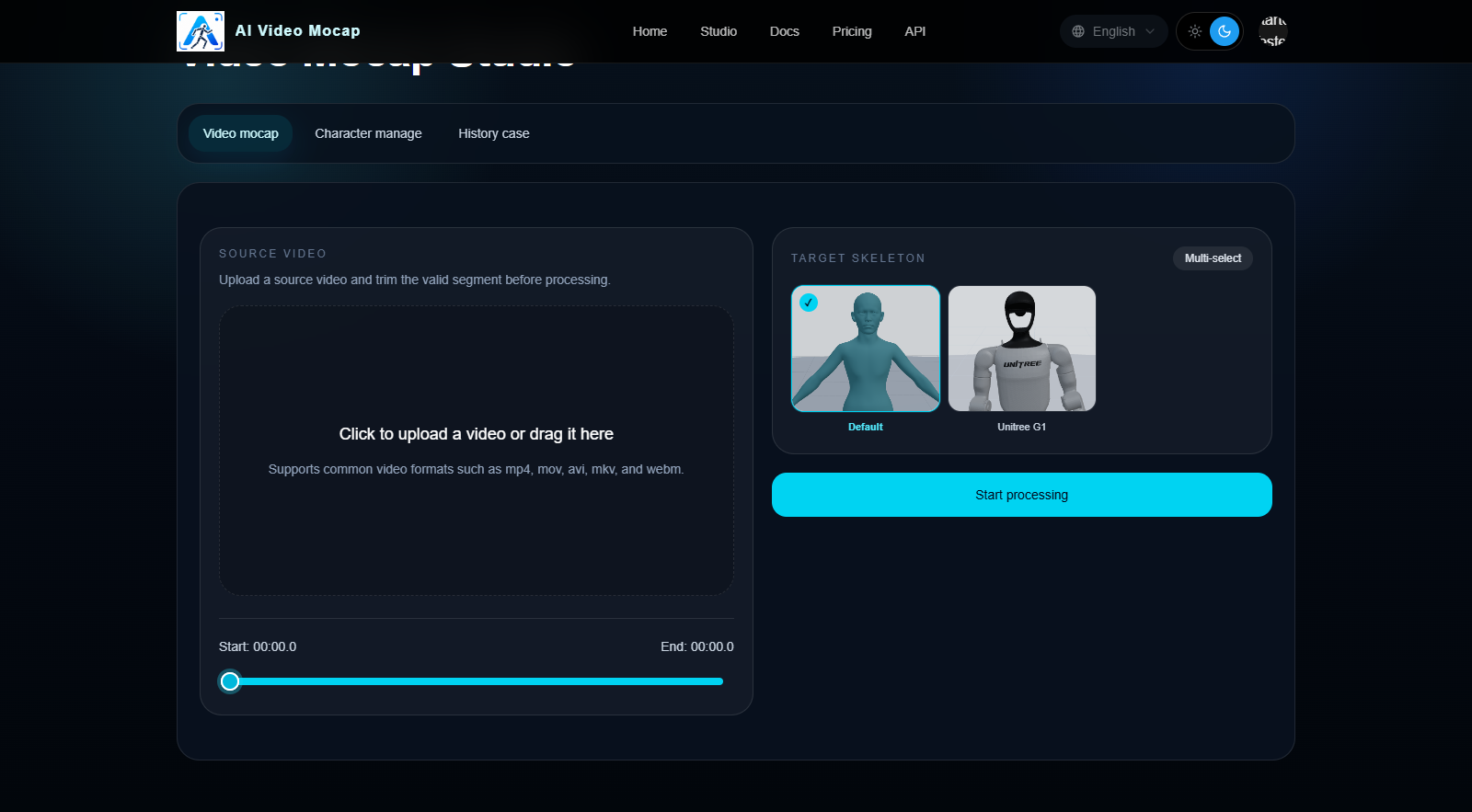
1. Upload a source video
- Keep the main subject clearly visible
- Use a single continuous shot without hard cuts
- Avoid heavy blur, severe occlusion, or fast scene switching
2. Trim the useful motion segment and choose a person
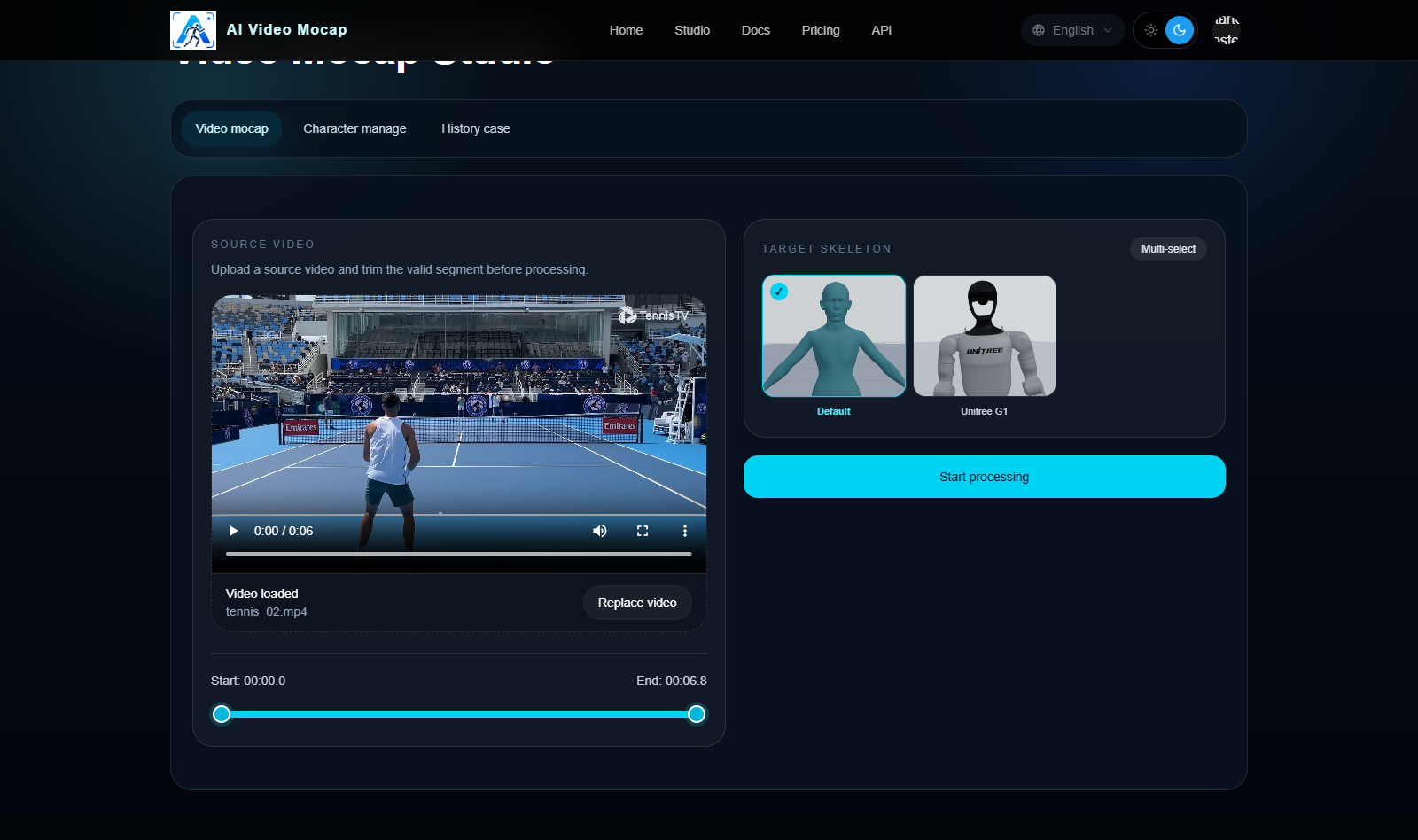
After upload, select the start and end range that contains the motion you actually want to process. For single-person videos, keep the default auto-detect mode; for multi-person videos, use Specify person to choose who to capture.
- Trim away idle time before the motion starts
- Trim away extra frames after the motion ends
- Keep the selected segment as short and clean as possible
3. Choose output targets
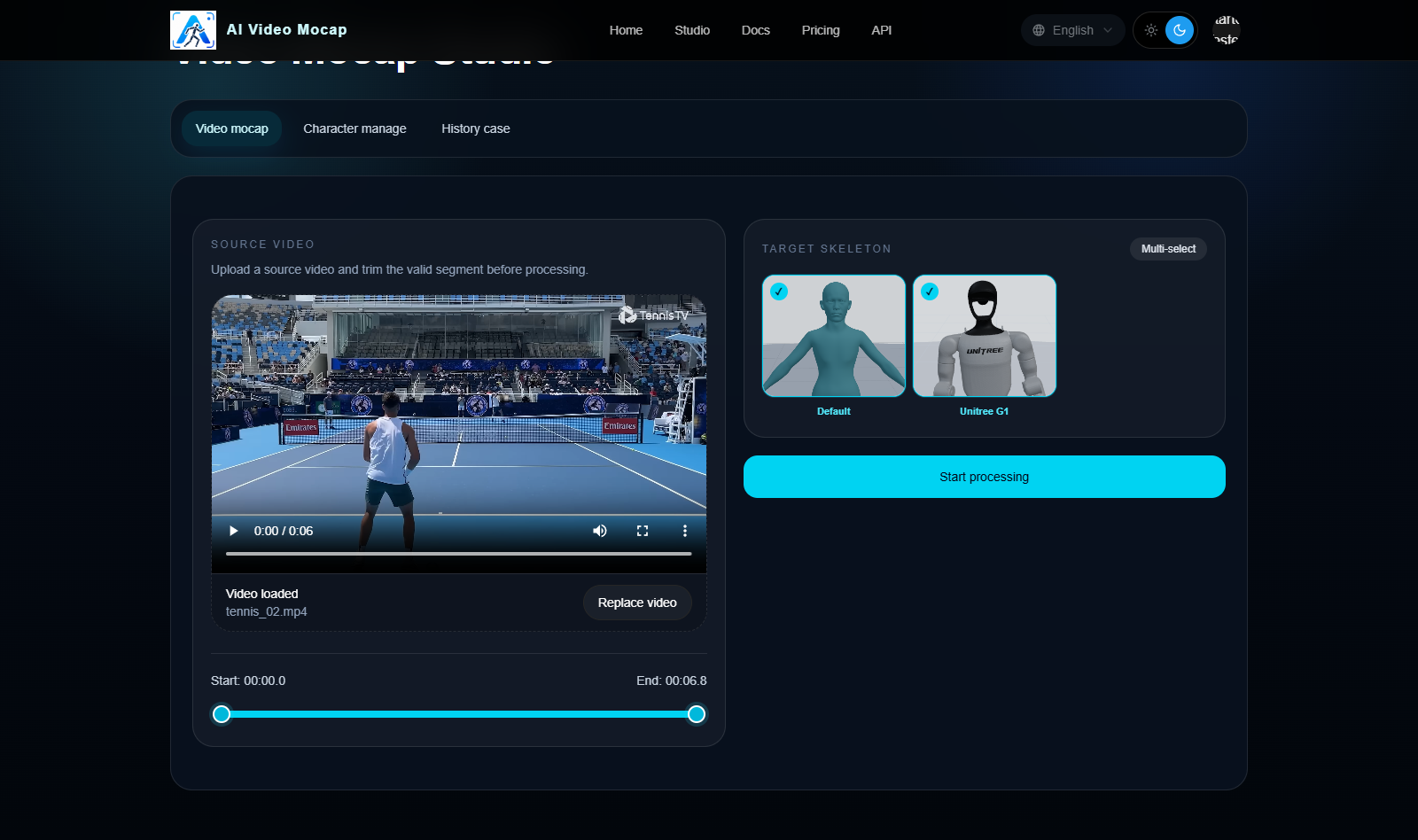
You can send the same clip to multiple output targets.
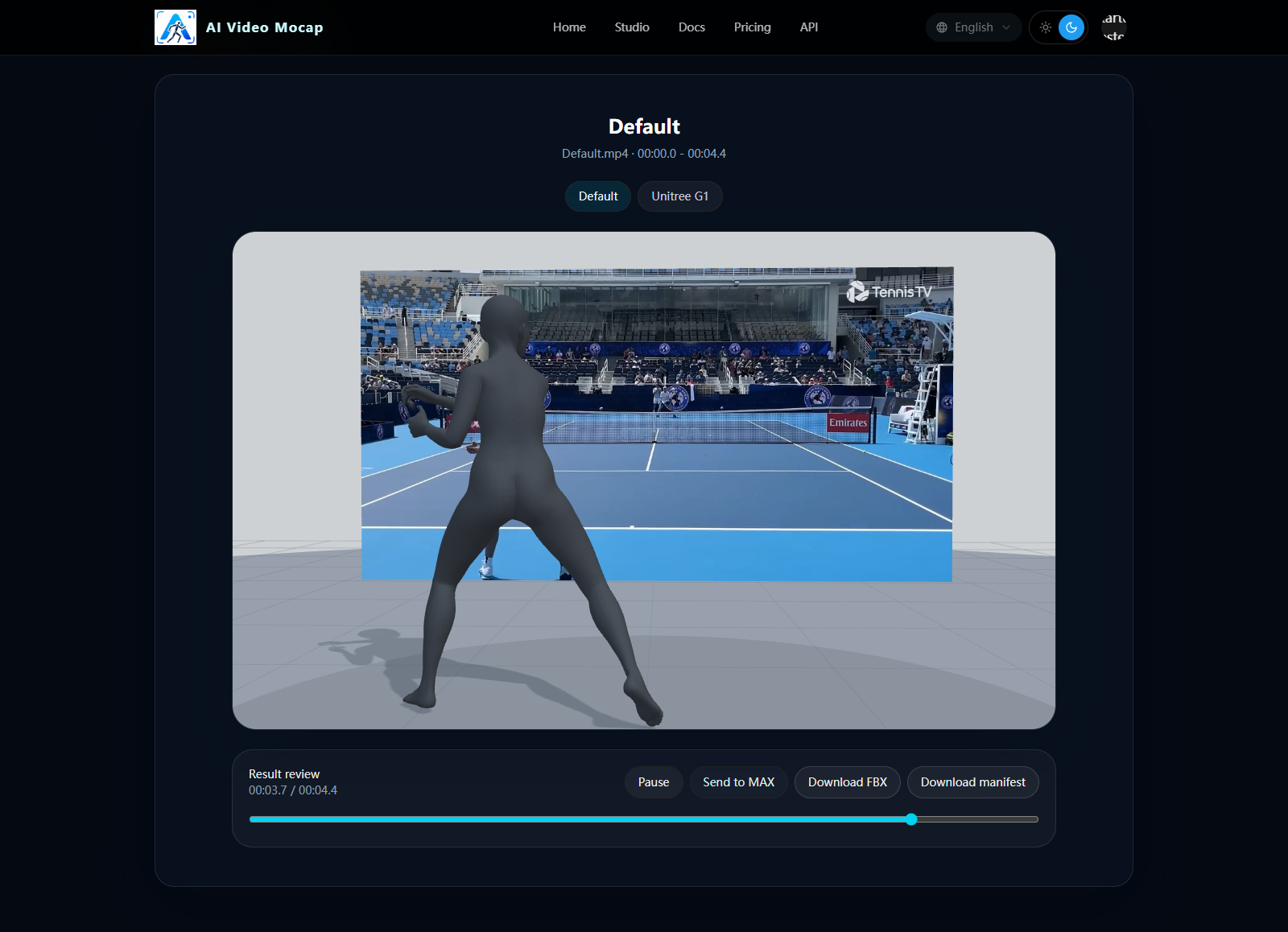
- Default: metahuman-style humanoid output
- Unitree G1: robot-oriented motion output
- Preset common skeletons (BETA): common skeleton/FBX+Bvh outputs, also available on Free during beta
- Published custom characters: humanoid FBX characters that already passed the binding workflow
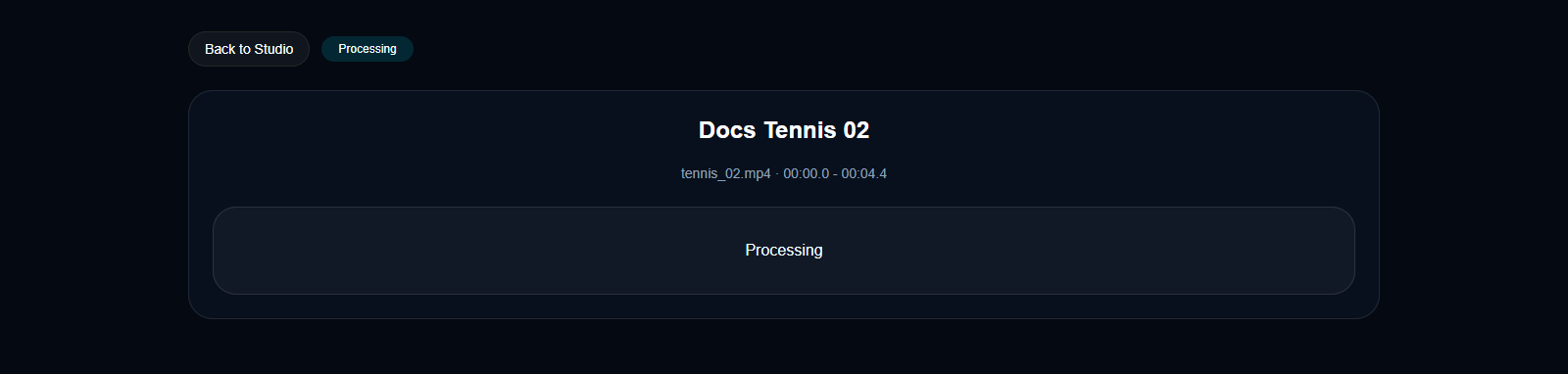
4. Submit and wait for processing
Once the source clip, trim range, and output targets are ready, submit the job to the queue.
- Credits are consumed when the upload is complete and the job is admitted into the runnable queue
- Processing speed depends on the queue and selected outputs
5. Preview and download results
When the job finishes, open the result page to preview the generated outputs and download the final files.
- For humanoid targets, download the final FBX
- For Unitree G1, download the final robot motion JSON
Recommended source video requirements
Use clips that are appropriate for video mocap:
- clear image quality
- one continuous shot
- full or mostly visible body motion
- readable limb movement
- minimal camera shake
- no heavy motion blur
- no fast cuts or transitions
Bad source footage usually leads to unstable motion, foot sliding, or missing limb detail.